
When you already have valuable labels in your point cloud data, you should not have to lose them when you run a new classification. This guide shows how to create a processing flow that keeps one or more input classes while applying Flai classification to everything else.
A common pattern is to keep Ground from the input data while applying Flai’s classification to above-ground points.
How Keeping Original Classification Works
Under the hood, Flai’s AI models classify all available categories at once. During the result merging step, any points that belong to your retained classes are left unchanged, so original classifications, such as Ground, remain intact.
Why merge inside Flai
Doing the merge directly inside Flai is the most efficient option.
Your files are already open while Flai runs, so retaining input classes like Ground adds no extra processing time.
If you attempt this in a separate workflow, you will open and close large LAS files again, which is slow and unnecessary.
Workflow 1: Retain Ground with conditional remapping
To keep Ground or any other input class, we will need to create a flow with the processing node: Classifier – Aerial Mapping FlaiNet with conditional remapping

Flow with Classifier – Aerial Mapping FlaiNet with conditional remapping
Select your input dataset in the point cloud reader and define the dataset output name in the point cloud writer.
Aerial Mapping FlaiNet with conditional remapping settings
Open the node settings of the classifier and select the model. Use the checkboxes to choose the categories you want to output - you can also change the classification number assigned to each category.
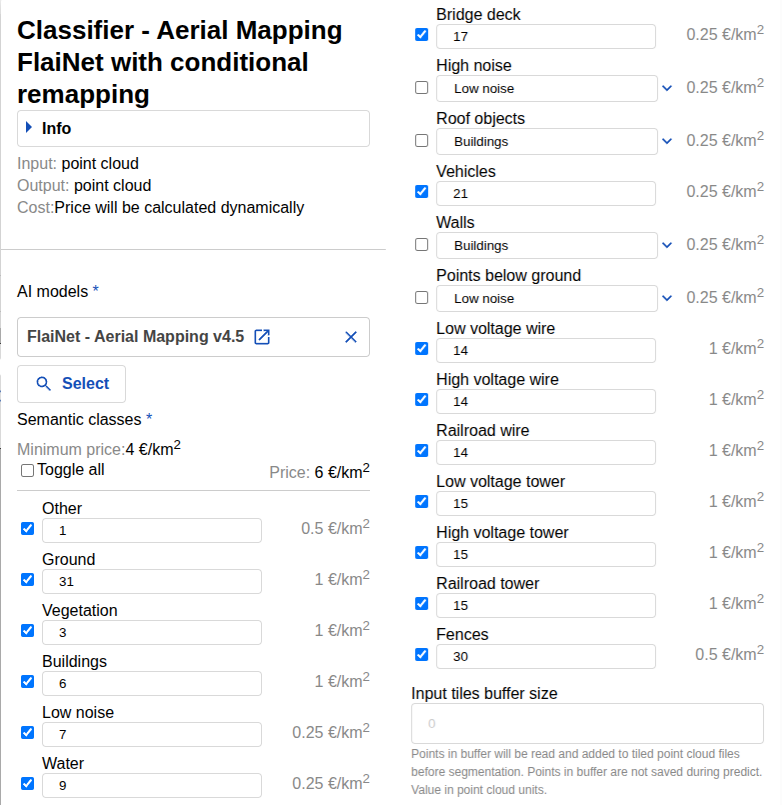
Selected categories with custom-defined class numbers. Flai Ground is output as class 31.
Keep in mind, as mentioned earlier, the model under the hood outputs all categories. Any category that is not selected will automatically be remapped to its parent class, which is usually class 1 (Other).
If you want to preserve the input Ground (class 2), do not assign the Flai Ground category to class 2. If you simply uncheck (leave unselected) the Ground class, it will be remapped to class 1 (Other). Some clients prefer to remap it to class 3 (Low vegetation) or to a temporary class, such as 31.
Define which classification categories to keep from the input data
Below the model output section, find the field: “Class label values in source data to be used for results overwriting.”
To preserve the original Ground, input: 2
Then check the box: “Retain selected class labels from original data.”
This tells Flai to leave classes 2 (Ground) untouched in the output, while classifying the rest. (Multiple classes can be retained/inputted in this field.)
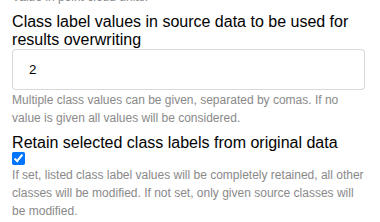
Retain class2 (Ground) settings
Target only specific input classes
You can also apply Flai classification only to specific input classes. For example, to target class 1 (Other Points) and leave all other classes untouched:
Enter 1 in the same field.
Leave the checkbox unchecked.
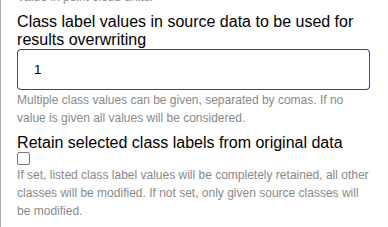
Settings to overwrite class 1 from the input data with Flai classification
Think of the checkbox as choosing between preserve and target logic:
Checked: preserve these input classes. Flai will not overwrite them.
Unchecked: target only these input classes for overwrite. All others are left as they are.
Results
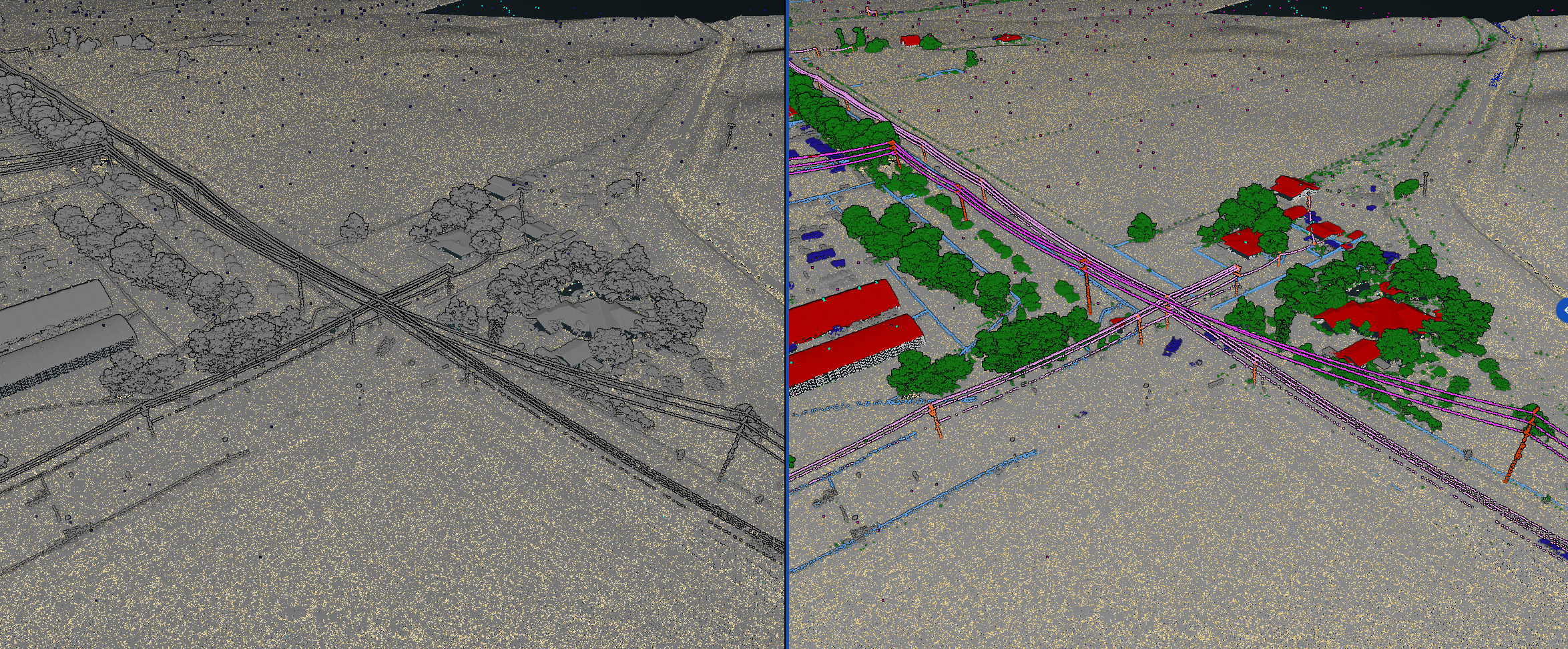
Left: Original classification; Right: Flai classification with conditional remapping that retains the input Ground class and routes Flai Ground to class 1.
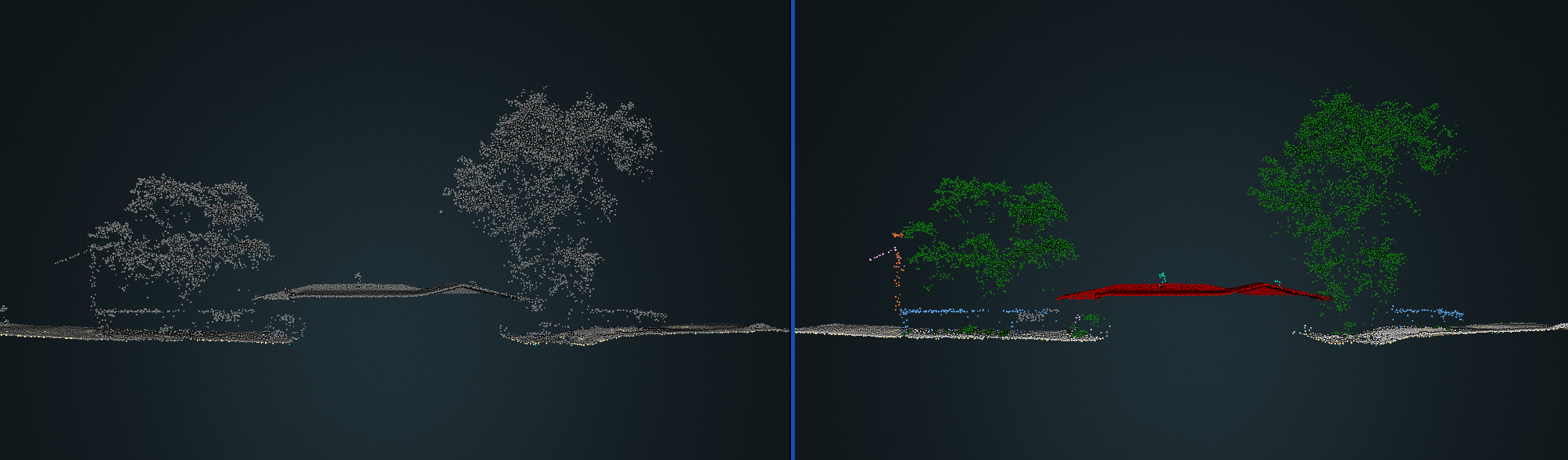
Side view
Explore the classified point cloud below, or open it in a new window.
Workflow 2: Fine control with definable labels merge
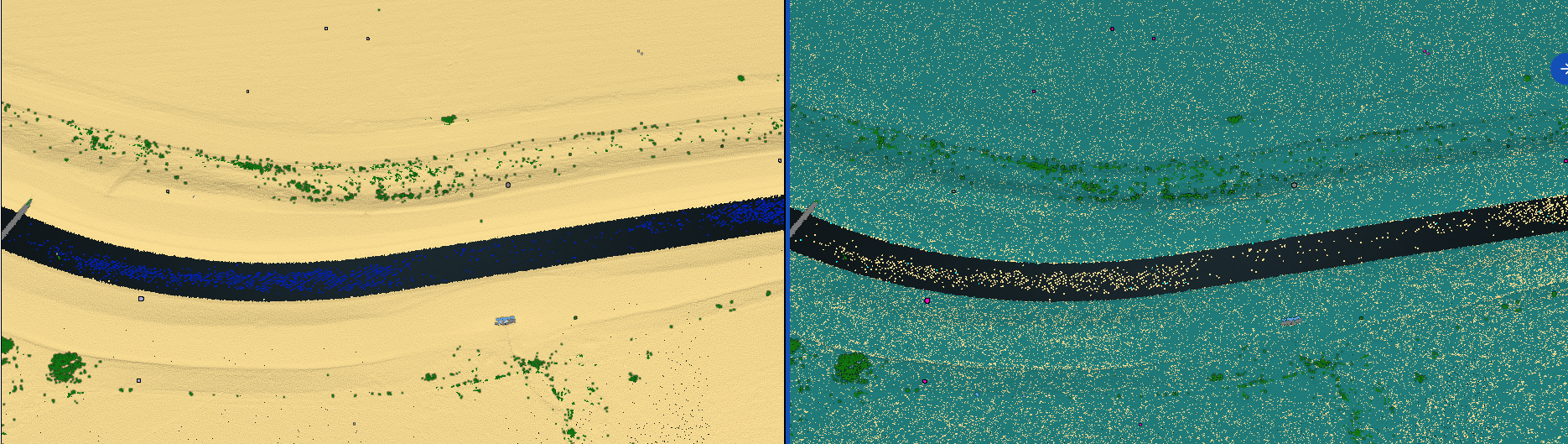
Left: Full Flai classification with detected water (blue points); Right: Classification with conditional remapping, where the original Ground class remains intact.
Sometimes you want to retain the original classification label, such as Ground, but allow specific Flai classes to overwrite it in certain cases. A common example is overwriting original Ground classification with the Flai’s Water class where applicable.
This can be done in Flai using the following processor: Classifier FlaiNet – with definable labels merge (any model)

Advanced flow to retain original input classification using the _Classifier FlaiNet – with definable labels merge any mode_l) flow node.
Select your input dataset in the point cloud reader and define the dataset output name in the point cloud writer.
Classifier FlaiNet – with definable labels merge (any model) settings
As with the Classifier Aerial Mapping with Conditional Remapping flow node, select the model, specify the classes you want to assign to the point cloud, and define the corresponding class numbers.
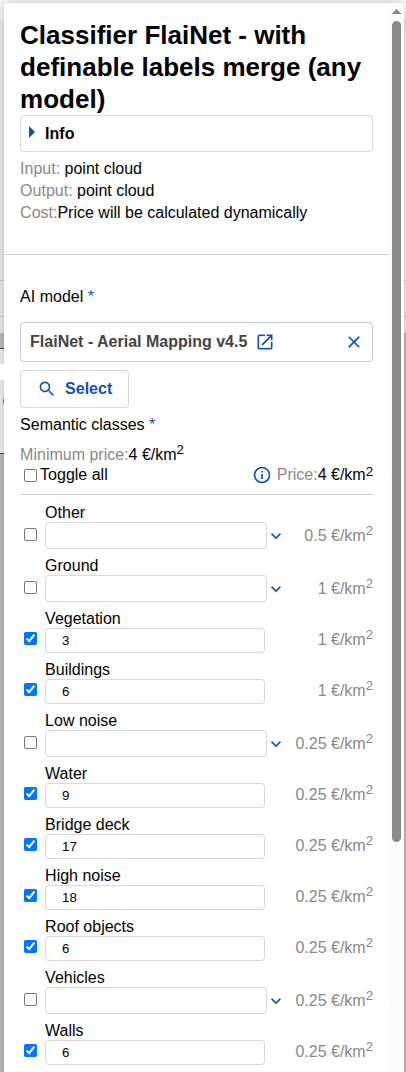
Selected classes with assigned output classification numbers. In this example, Flai Ground is assigned to class 1 (Other).
Create a custom remapping schema
To merge the original (input) classification with the Flai classification, you need to define a custom remapping schema. The schema acts like a permission list: for each Flai class we wish to classify, we say which existing input classes it’s allowed to replace. If a class isn’t on the list, it stays as-is.
Example:
Let’s say we have a file with preclassified input labels:
1 – Unclassified
2 – Ground
7 – Low Noise
18 – High Noise
And we want to apply the following Flai classification:
3 – Vegetation
6 – Buildings
9 – Water
17 – Bridge Decks
18 – High Noise
We define the remapping as follows:
Flai class 6 (Buildings) is allowed to overwrite input classes 1 and 18, but not Ground or Low Noise. → 6 = [1, 18]
Flai class 9 (Water) is allowed to overwrite everything except Low Noise. → 9 = [1, 2, 18]
Repeat this process for each class you want Flai to include in the final classification output.
The final schema for this example would be:
3 = [1, 18], 6 = [1, 18], 9 = [1, 2, 18], 17 = [1,2,18], 18 = [1]
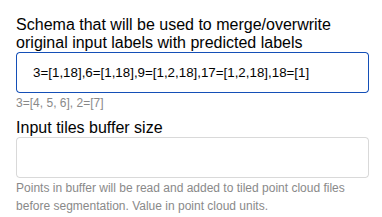
Define the schema for merging or overwriting original input labels with predicted labels (classified by Flai).
Results
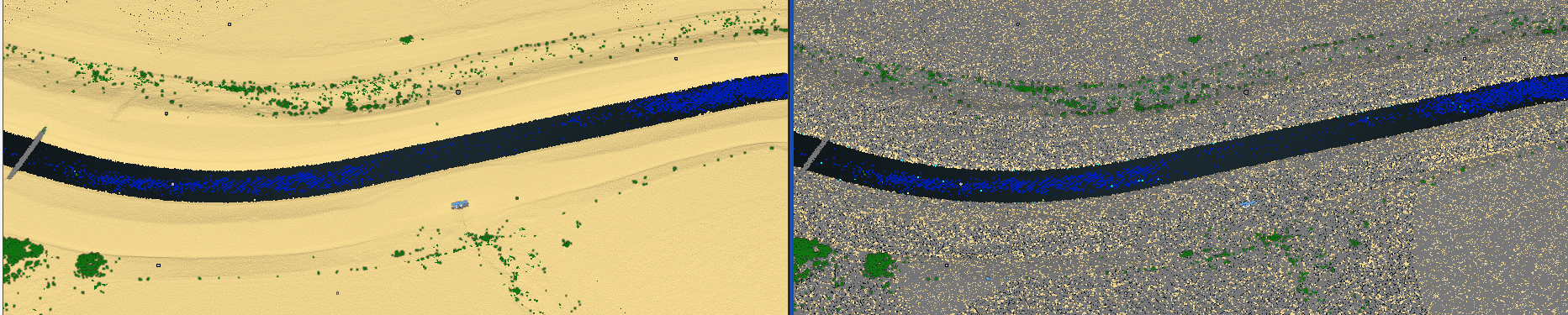
Left the full Flai classification, right the ”advanced” classification with retaining the original Ground with case to still overwrite the water class over it.
You now have two reliable ways to keep input classifications intact while using Flai’s models:
Conditional Remapping – for simple cases where you want to keep original classification labels as they are.
Definable Labels Merge – for “advanced” setups where you define, per class, how Flai’s predicted results should merge with the original classification.
If you want to go deeper, open the node info sections in the flow builder for exact schema formatting, check the documentation, or reach out to our team. Happy classifying!